Documentation Index
Fetch the complete documentation index at: https://docs.atopile.io/llms.txt
Use this file to discover all available pages before exploring further.
Create a project
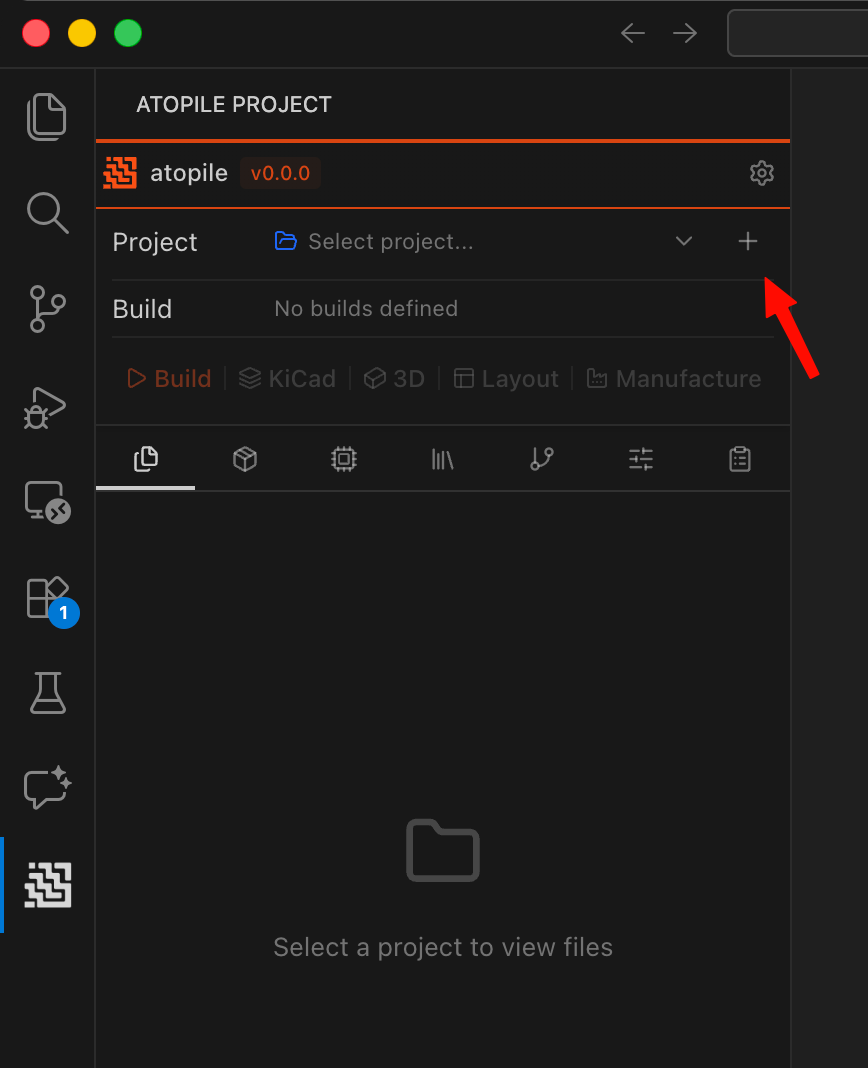
Click the+ button next to the project selector to create a new project.
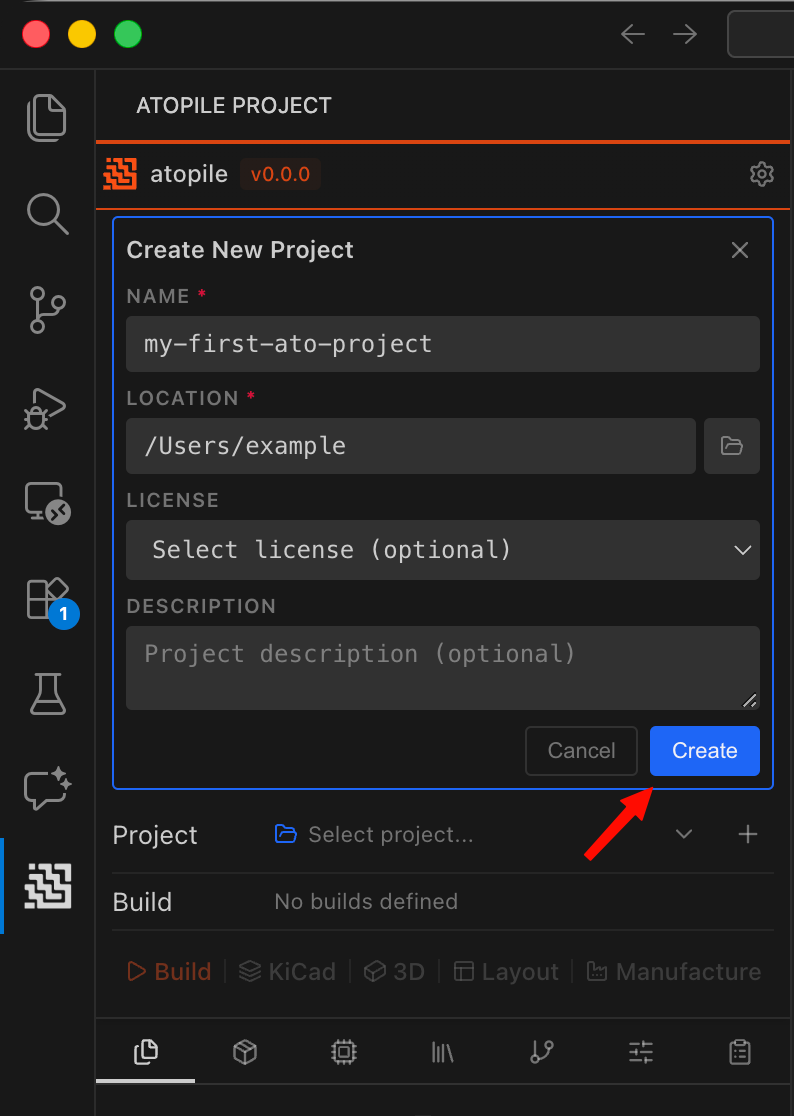
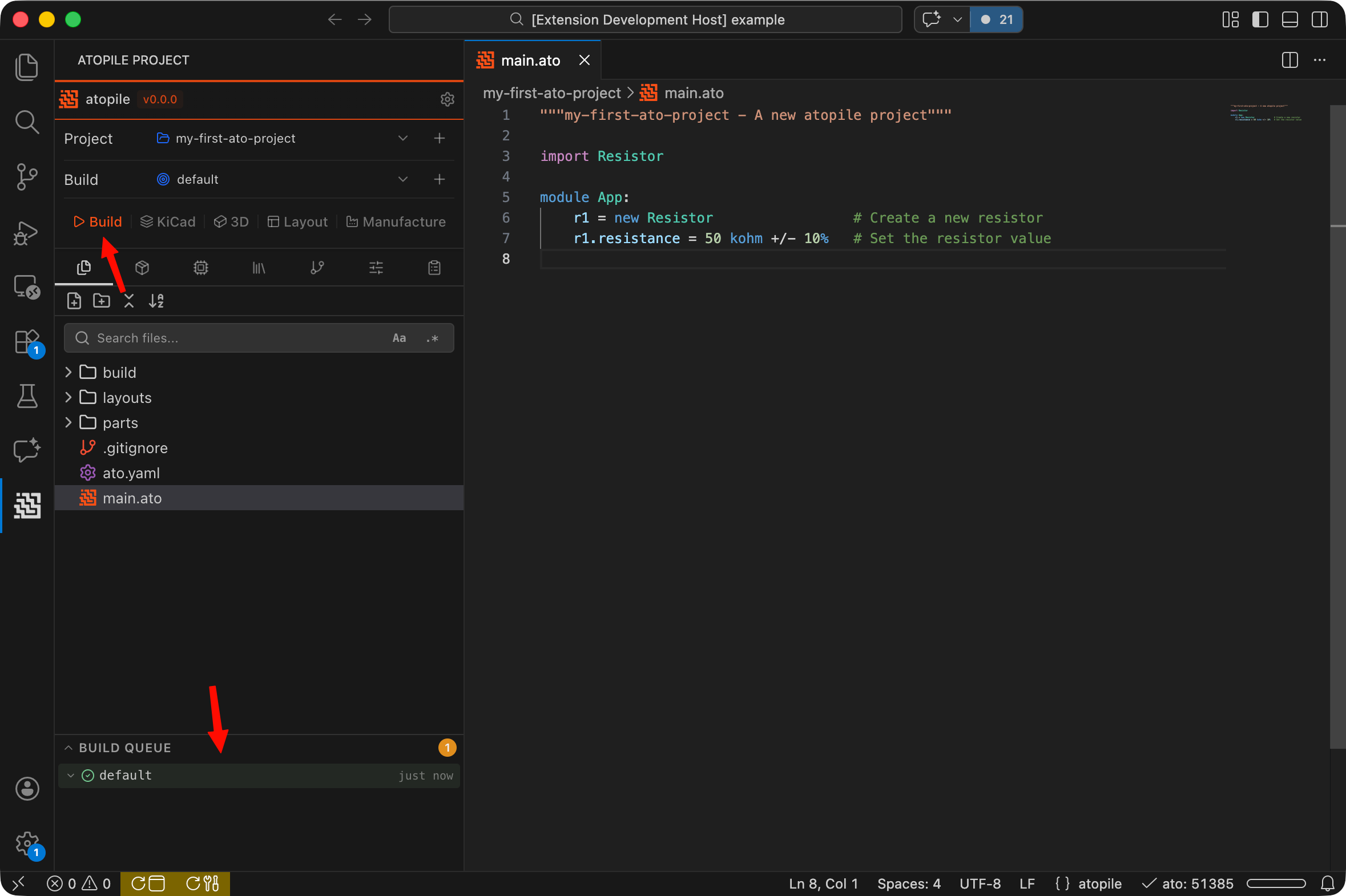
main.ato in the file explorer to open it in the editor.
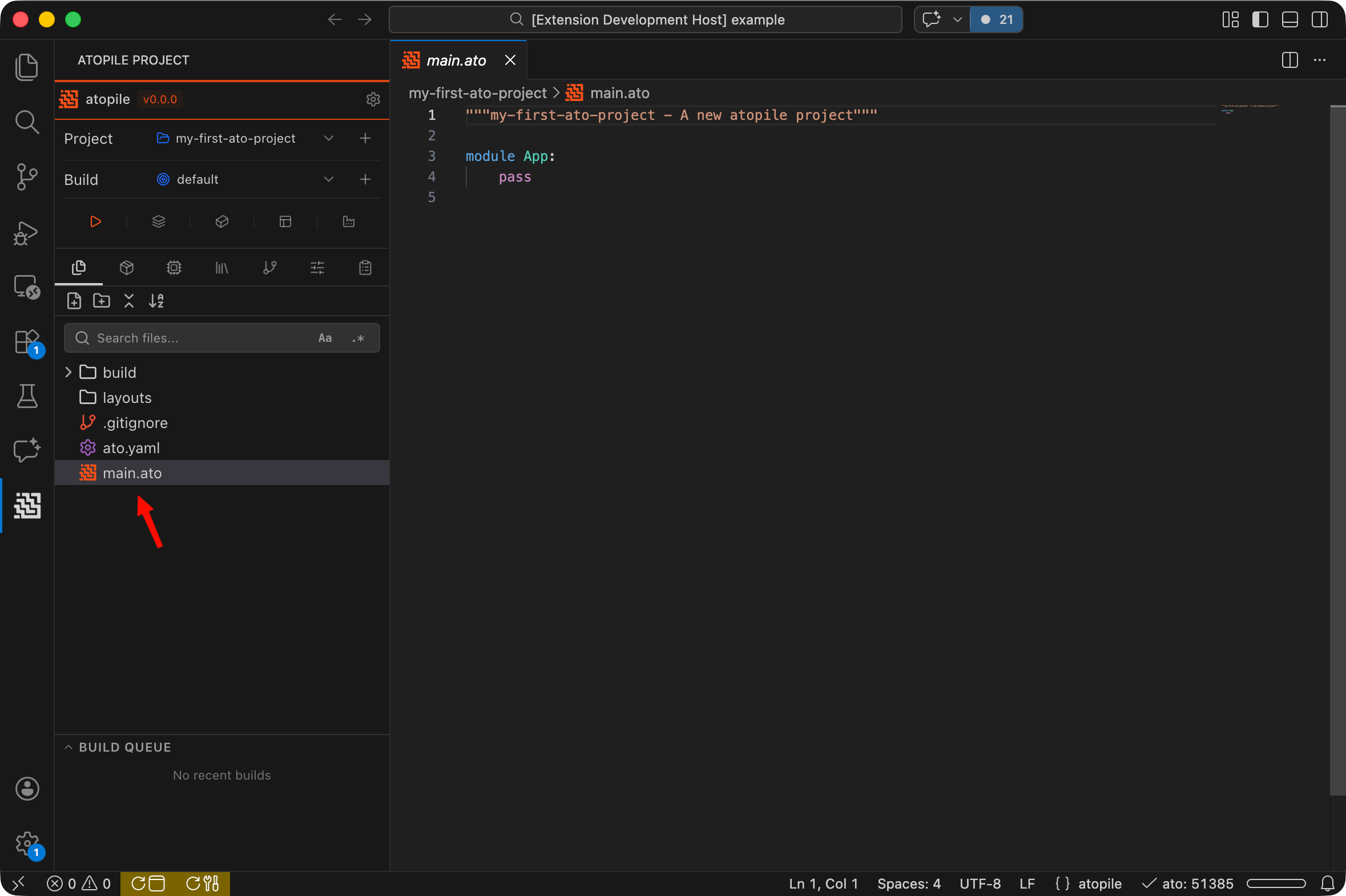
.ato files are where design intent is captured. See ato Language for more details.
Other project files contain metadata and export artifacts. They are auto-generated when creating a new project. See Project Structure for more details.
Build it
main.ato with this code, then click the Build button in the extension.
Views
After a successful build, you can visualize your design with the buttons next to the build button:- 2D Layout: opens a built-in viewer showing component placement and board outline.
- 3D Model: opens a built-in 3D preview of your assembled board.
- KiCad: opens the layout in KiCad for routing and detailed editing. Requires KiCad to be installed.